How to Use the PDF to PNG Online Tool (5 Step-by-Step Guide)
Ever needed to turn a PDF into an image? Maybe you wanted to share a single page as a picture, post part of a report on social media, or grab a screenshot from a PDF without losing quality. Whatever the reason, a simple PDF to PNG converter can make your life a lot easier.
This guide will walk you through exactly how to convert PDF to PNG online — no software, no sign-up, and no hassle. Let’s get started.
1. What This Tool Does
The PDF to PNG online tool is built for one purpose: making your PDFs instantly viewable as clear, high-quality images.
Here’s what it does:
- Upload your PDF → it automatically converts each page to a PNG image
- Preview your images directly on the page
- Download everything in one neat ZIP file
That’s it. It’s free, fast, and 100% online. No installation needed — just open your browser and you’re ready to go.
2. When You Might Need It
You’d be surprised how often this comes in handy. Here are a few common situations:
- Designers who want to grab a high-resolution image from a PDF layout
- Students or teachers who need to insert part of a PDF into a presentation or notes
- Office workers sharing a PDF report but want to show it as images instead
- Content creators pulling graphics or infographics from a PDF
If any of that sounds familiar, this PDF to PNG converter will save you time and frustration.
3. Step-by-Step: How to Convert PDF to PNG Online
Alright, let’s walk through how to use the tool from start to finish.
Step 1: Go to the Website
Head over to
👉 https://pngtopdftopngconverter.com
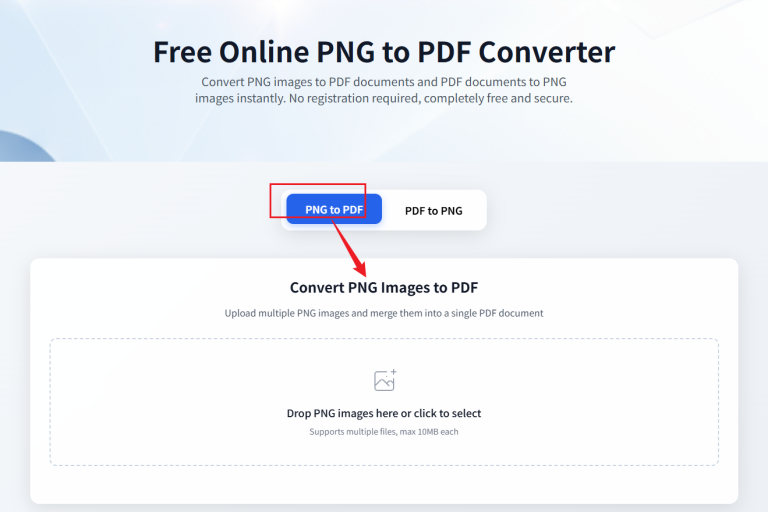
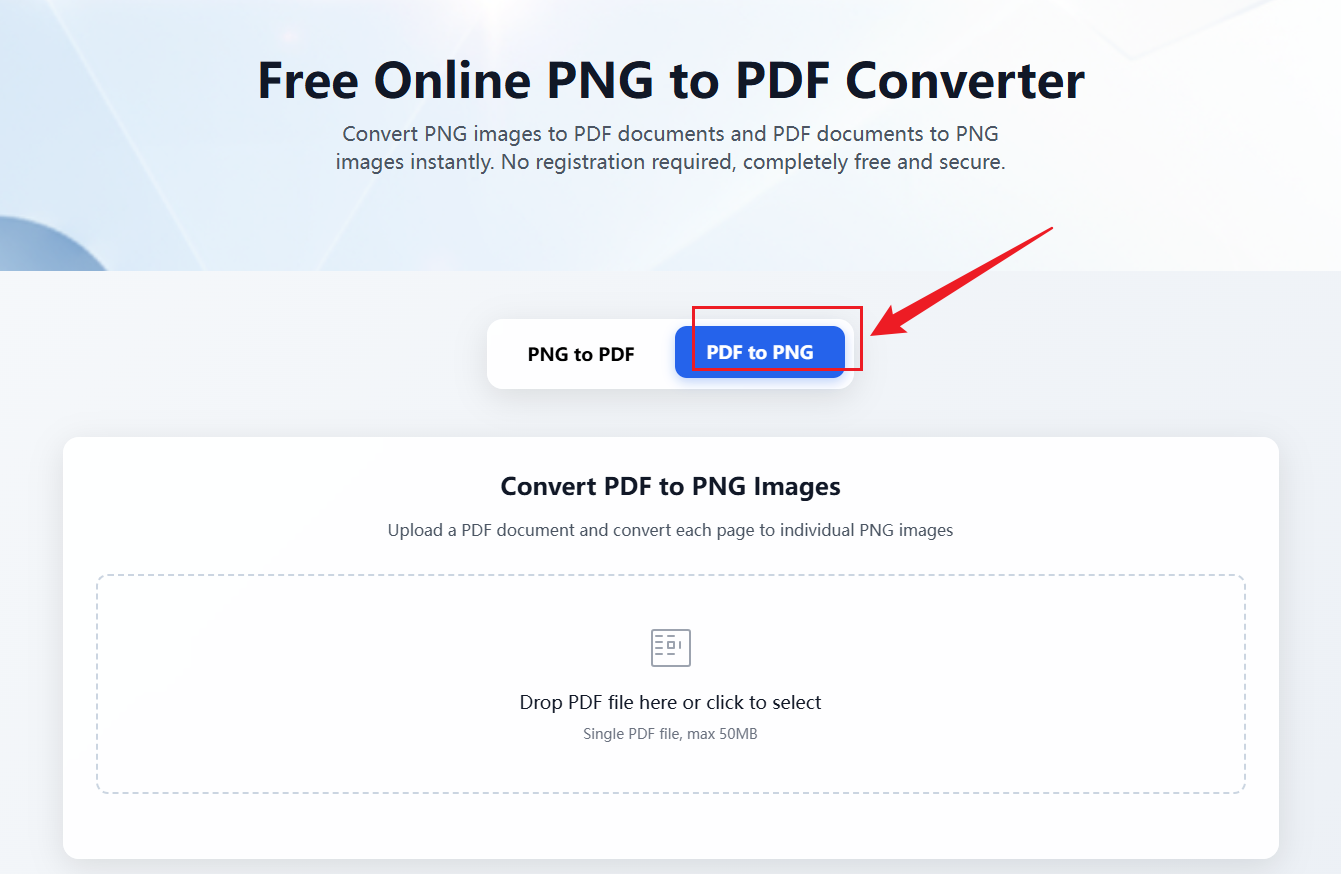
Once the page loads, click the tab at the top that says “PDF to PNG.”
You’ll see a big upload area that says something like “Click to upload your PDF file.”
Step 2: Upload Your PDF File
Click the upload box and pick your PDF file.
The upload starts automatically — no buttons, no setup.
Depending on your file size, it might take a few seconds. You’ll see a progress bar showing how things are going.
Step 3: Automatic Conversion
After the upload finishes, the magic begins.
The tool automatically starts converting your file from PDF to PNG.
It usually only takes a few seconds.
Each page in your PDF becomes a separate PNG image.
When it’s done, you’ll see a list of thumbnail previews appear right on the page.
Step 4: Preview the Images
Click any thumbnail to open a larger preview.
This lets you check the image quality — and yes, it’s crystal clear.
Every detail from your PDF is preserved perfectly in PNG format.
Step 5: Download All Images at Once
Happy with the results?
Click the “Download All PNG Images” button.
The converter will bundle everything into a ZIP file for you.
Wait a few seconds, and your browser will prompt you to save the file.
Once it’s downloaded, just unzip it — and there you go, all your PDF pages are now clean PNG images!
4. Why You’ll Love This PDF to PNG Converter
It’s simple, but it does the job really well. Here’s why people love it:
- Completely Free – no sign-up, no limits, no watermarks.
- Fully Automated – upload and let it handle the rest.
- High-Quality Output – crisp PNGs that stay true to the original PDF.
- One-Click Download – grab all your images in one ZIP file.
- No Software Needed – 100% browser-based, works on desktop and mobile.
It’s everything you need in a quick, reliable pdf to png solution.
5. FAQs
Q1: Is my uploaded PDF stored online?
Nope.
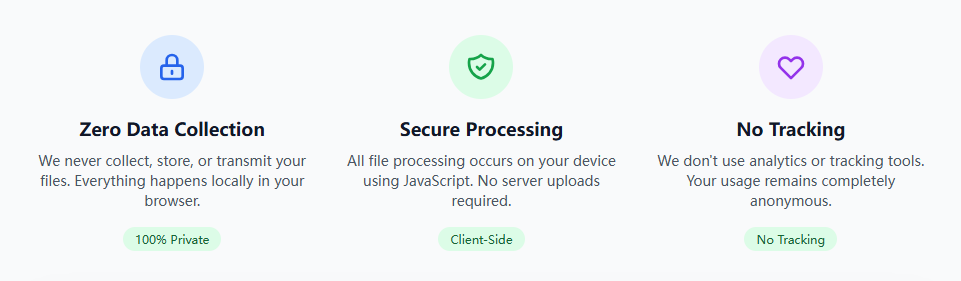
Your file is only used for the conversion process and is automatically deleted afterward. Your privacy stays safe.
Q2: How many PNGs will I get?
Exactly the same number as the pages in your PDF.
So, if your PDF has 8 pages, you’ll get 8 PNG images.
Q3: Can I save just one page instead of all?
Sure thing.
Click any image thumbnail to open it in full view, then right-click and choose “Save image as…” to download that single page.
Q4: Can I edit the PNGs afterward?
Absolutely.
You can open them in Photoshop, Canva, or any image editor to crop, resize, or add text.
Q5: Any file size limits?
Try to keep your PDFs under 50MB for the best performance.
Larger files may take a bit longer to upload, depending on your internet speed.
6. Pro Tips
- If your PDF looks blurry after converting, it might be because the original PDF had low resolution — always start with a high-quality file.
- Need smaller images? You can compress your PNGs with free tools like TinyPNG before sharing them.
- Combine it with the site’s PNG to PDF feature to switch back and forth — it’s perfect for editing, sharing, or reorganizing files.
7. Final Thoughts
If you’ve ever struggled to get clean images from a PDF, this PDF to PNG converter is the simplest way to do it.
It’s fast, free, and ridiculously easy to use.
No logins, no software — just upload your PDF and let the tool do the work.
Next time you need to convert PDF to PNG, remember this site. It’ll make your workflow a whole lot smoother.