How to Use the Online Free PNG to PDF Converter (5 Step-by-Step Guide)
If you’ve ever needed to convert PNG to PDF, you know it can be a bit tricky without the right tool. That’s why using a free online PNG to PDF converter is such a lifesaver. With this tool, you can quickly turn multiple PNG images into a single, neat PDF file. Whether it’s for work, school, or personal projects, this PNG to PDF process makes organizing your images super easy.
Today, I’ll show you exactly how to convert PNG to PDF online in a few simple steps. The process is fast, intuitive, and requires nothing more than your browser. Let’s dive in.
🚀 Step 1: Go to the PNG to PDF Converter Website
Open your browser and head over to
👉 https://pngtopdftopngconverter.com
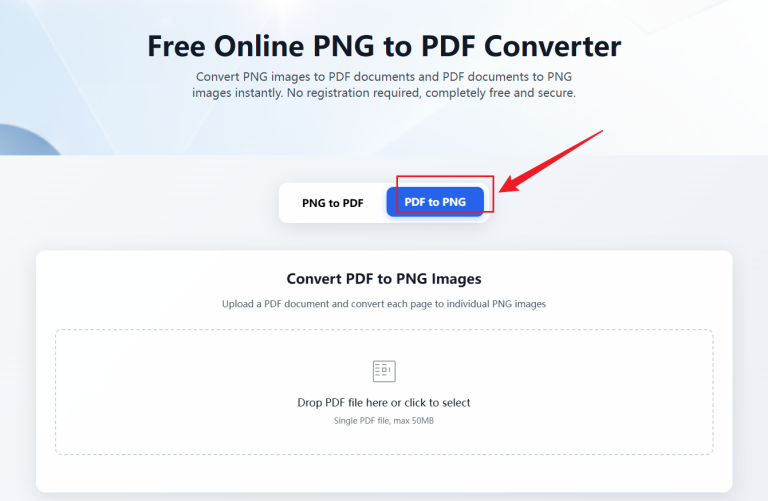
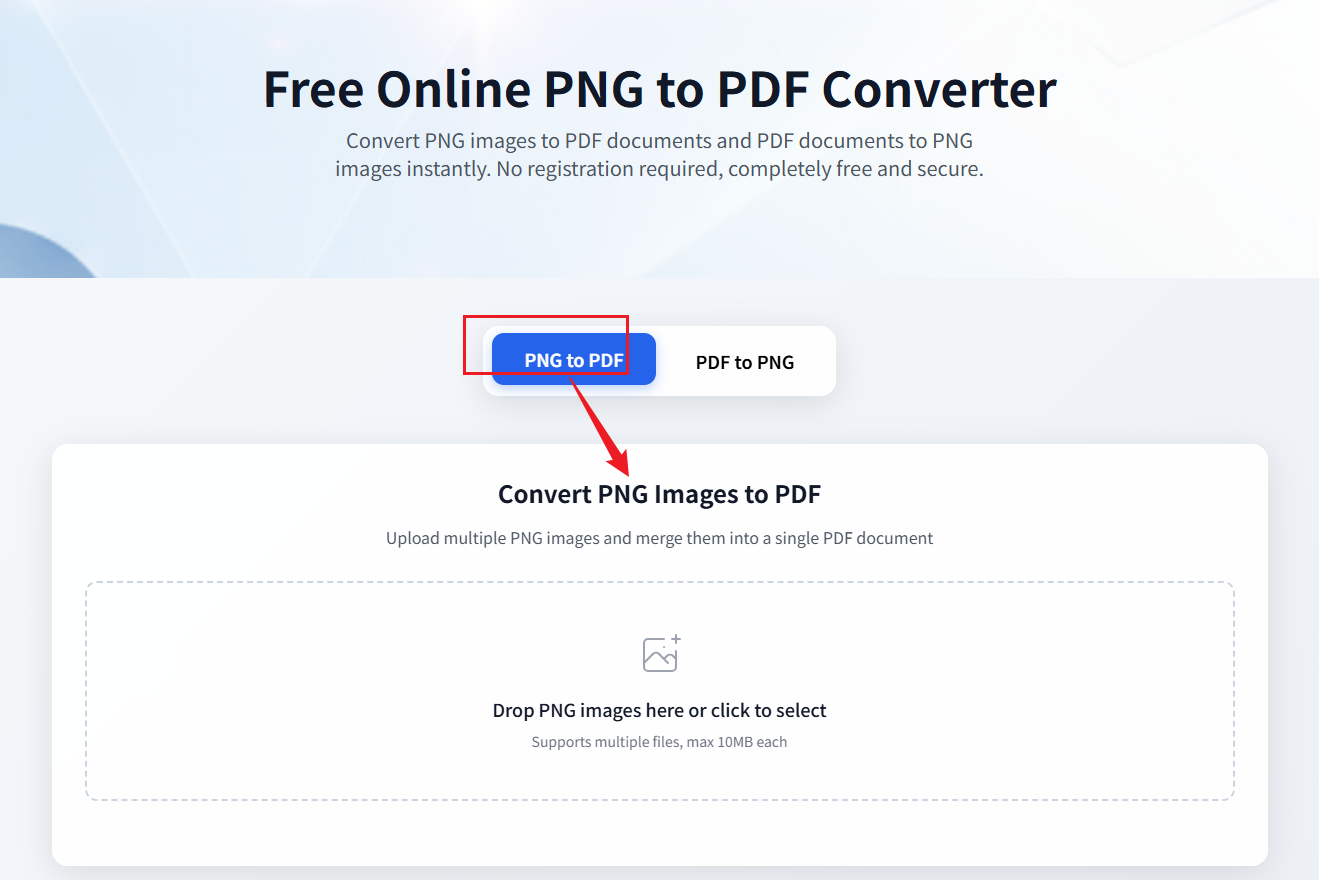
You’ll notice two main sections on the homepage:
- PNG → PDF Converter
- PDF → PNG Converter
Since we want to convert PNG to PDF, click the “PNG to PDF” section. The interface is clean and simple — perfect even if you’re not tech-savvy. Everything you need is on one page, making the PNG to PDF converter super convenient.
📤 Step 2: Upload Your PNG Images
Click “Upload” or drag and drop your PNG images into the upload area.
You can upload multiple images at once, which is great if you have several screenshots or documents.
Once uploaded, thumbnails of your images will appear, giving you a clear view of everything you’ve added. This is your chance to check the order before creating the PDF.
💡 Pro Tip:
You can easily rearrange images by dragging the thumbnails. This is important because the order here will determine how your PDF pages are laid out.
If you need to remove an image, click the delete icon on the thumbnail. Want to start over? Hit “Clear All” and upload again.
🖼️ Step 3: Preview and Organize
Click a thumbnail to preview the image. The PNG to PDF converter automatically keeps each image sharp and scaled correctly.
Before generating the PDF:
- Make sure all images are in the right order
- Remove duplicates
- Adjust orientation if necessary
A quick check here ensures your final PDF looks professional.
⚙️ Step 4: Generate the PDF
Once everything is ready, click the “Generate PDF” button. The tool will instantly convert PNG to PDF and prepare a single downloadable file.
Your browser will prompt you to download the PDF. Choose a location on your device and save it. That’s it! You’ve just used a PNG to PDF converter to merge your images.
💡 Bonus Tips
Here are some ways to make your PNG to PDF conversions even smoother:
- Name your files clearly.
Names likepage1.png,page2.pnghelp maintain order. - Optimize large PNGs.
Smaller files generate faster and make your PDF lighter. - Check thumbnail order.
Left-to-right thumbnail order matches PDF page order. - Mobile-friendly.
The PNG to PDF converter works perfectly on phones and tablets.
🔍 Step 5: Check Your PDF
After downloading, open your PDF to confirm:
- Are all pages included?
- Is the order correct?
- Are images clear?
If anything looks off, go back, rearrange, and generate again — it’s that easy.
🧠 Why PNG Works Best
PNG files are lossless, keeping every pixel perfectly sharp.
They’re ideal for screenshots, diagrams, or text-heavy images.
When you convert PNG to PDF, your final document stays crisp and professional.
JPEGs can work for photos, but PNG is better for clarity and detail.
🔒 Safety and Privacy
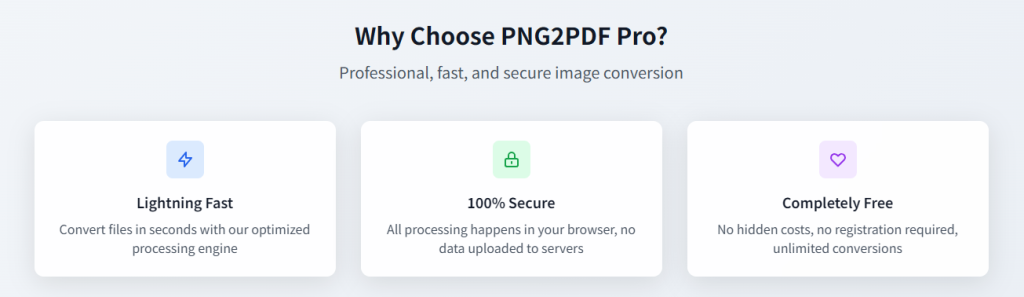
This PNG to PDF converter works entirely in your browser, meaning:
- Files never leave your device
- Processing is instant
- Your images stay private
No need to worry about uploading sensitive documents.
🌍 Use Cases
You might use a PNG to PDF converter when:
- Submitting scanned assignments
- Merging screenshots
- Organizing infographics
- Sending multiple images in one file
Instead of sending separate images, combine them neatly into one PDF.
❓ FAQs
Q1: Can I use other image formats?
The tool works best with PNG. Convert other formats to PNG first if needed.
Q2: File size limit?
Large files work, but smaller files are faster.
Q3: Can I reorder images?
Yes! Just drag and drop thumbnails.
Q4: Works on mobile?
Absolutely, it’s fully responsive.
🌟 Final Thoughts
Using a PNG to PDF converter makes merging images quick, simple, and hassle-free.
With just a few clicks, you can convert PNG to PDF without installing any software.
Try it today and see how easy it is to organize your images into a clean, shareable PDF.
👉 https://pngtopdftopngconverter.com